
Have a Question?
How to set pickup from store option
This setup ensures that customers can choose convenient store pickup options based on their location. Repeat the process if you need to add more store locations for pickup.
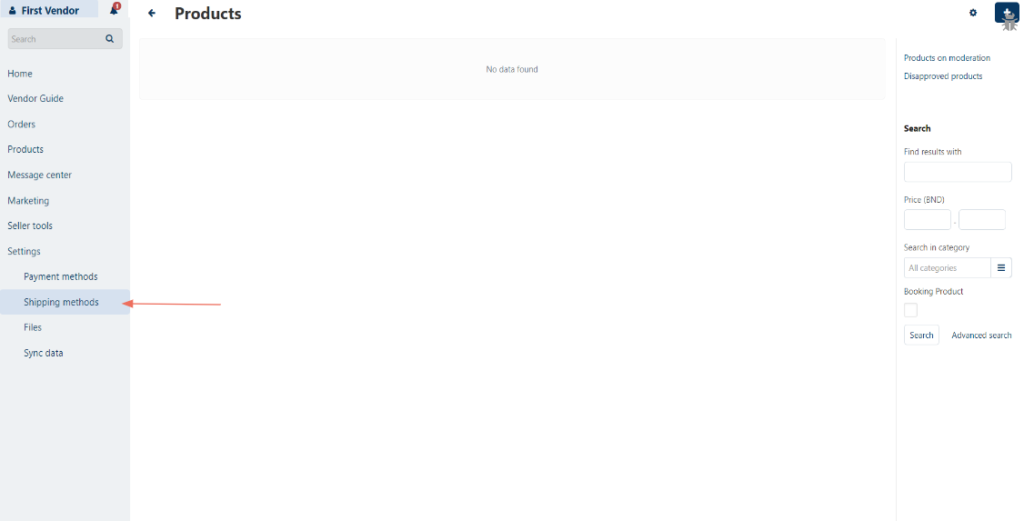
1. Access Shipping Methods:
- Go to “Settings” and click on “Shipping Methods” from the side menu.
2. Add a Store Location:
- Click on ‘More’, then select ‘Stores’.
- Click ‘+ Add Store Location’.


3. Input Store Information:
- Name: Enter your store or branch name.
- Position: Leave this blank.
- Address: Enter the full address of your store.
- Phone: Provide a contact number.
- Working Hours: Optionally, enter pickup or operating hours.
- Description: Add any relevant details about the pickup or location.

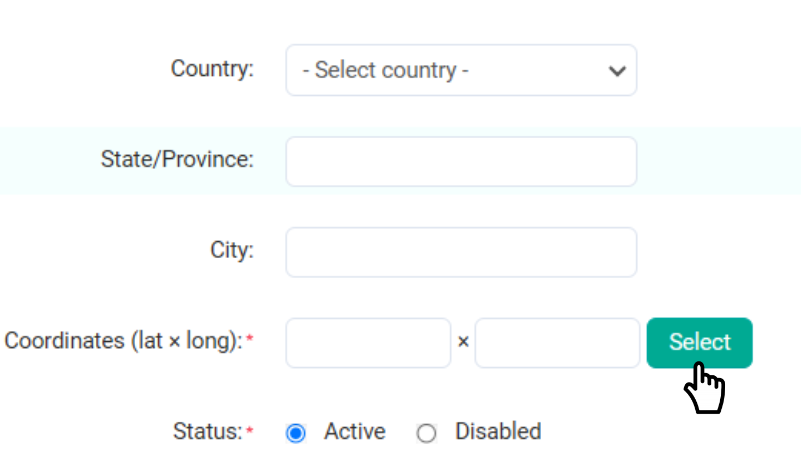
4. Set Coordinates:
- Click the ‘Select’ box to open a map, locate your store, and click ‘Set’ to capture the coordinates.
5. Create the Location:
- Once all information is filled in, click ‘Create’.
6. Configure Pickup Details:
- Switch to the ‘Pickup’ tab and select the district your store is located in under ‘Located in Rate Area’.
- Tick all the districts so that the pickup point is available to customers in all areas.


7. Finalize the Store Pickup Location:
- Click ‘Create’ to save the store pickup location.