
How to add product features & variants
Add profuct features
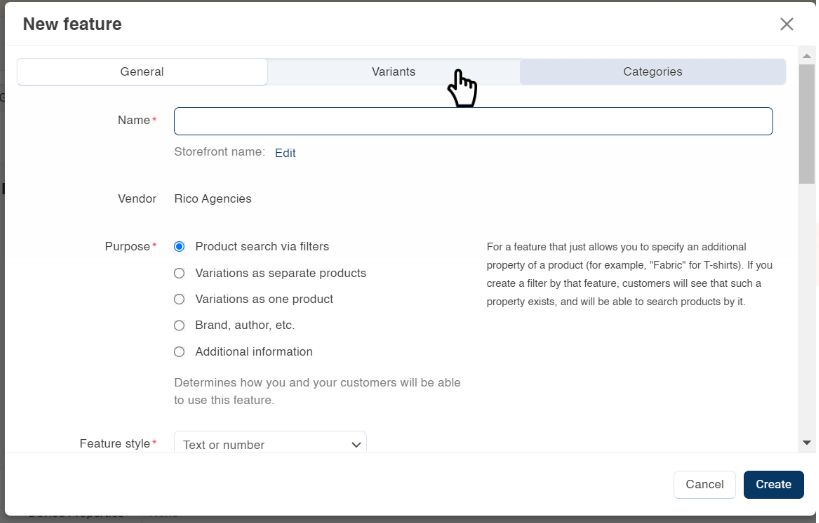
Add Product Features allows you to define unique attributes for your products, such as color, size, or specifications. The purpose is to provide detailed information and options to customers, helping them make informed purchasing decisions. To add features:
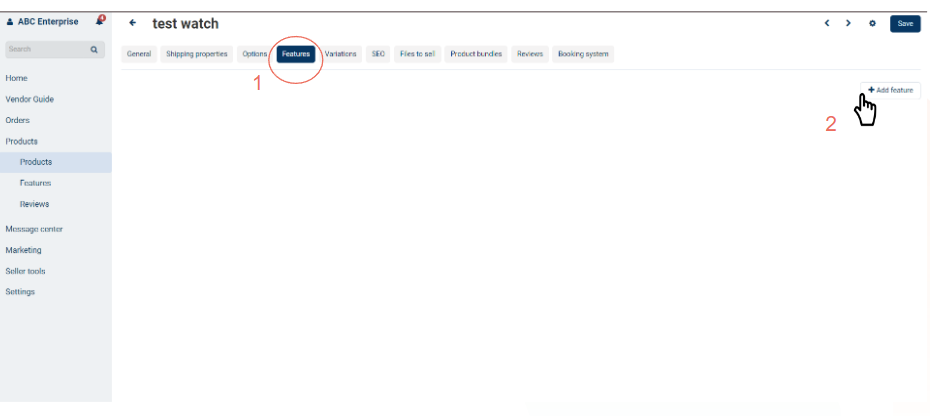
1. On the selected product page, switch to the ‘Features’ tab.
2. Click “Add Feature” and select ‘Advanced Feature Creation’.
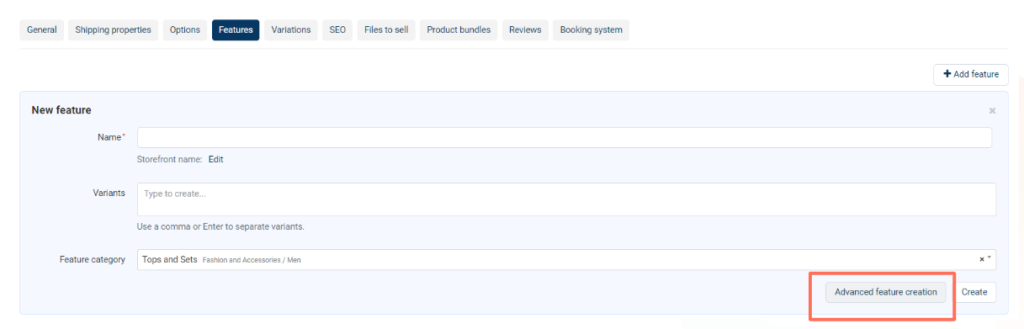
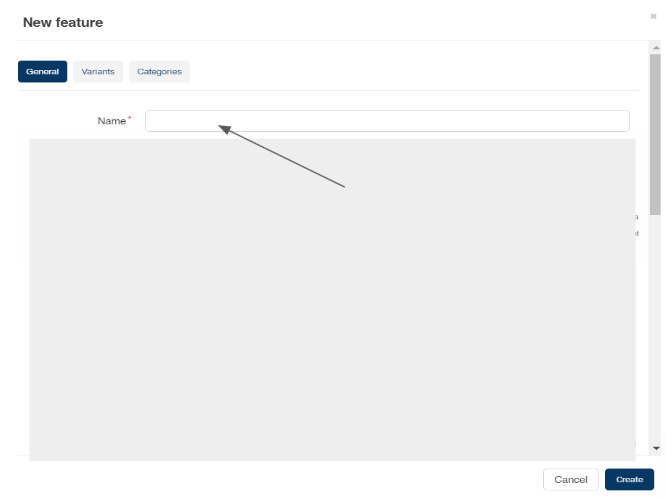
3. Create the Feature:
- Type the feature name, such as “Device Properties”.
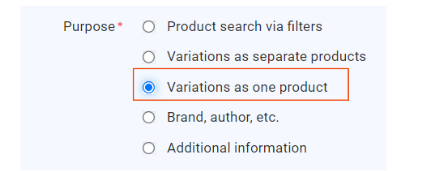
Product feature: purpose
4. Choose “Variations as Separate Products” to show each variation as a separate item.
- “Variations as Separate Products”: Displays each variation as separate items in the catalog (e.g., different colors or designs).
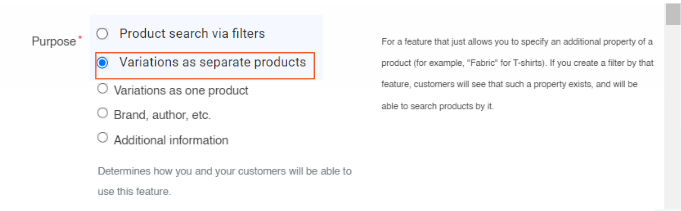

- “Variations as One Product”: Groups all variations under a single product listing, allowing customers to choose options (e.g., size or weight) from the product page.

Instead of cluttering the storefront with multiple similar-looking product listings, customers can conveniently select their preferred variation directly from the main product page.
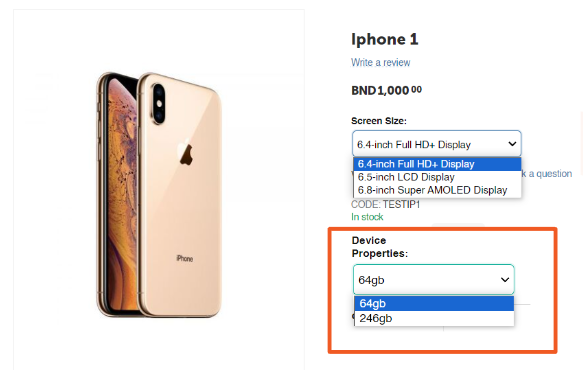
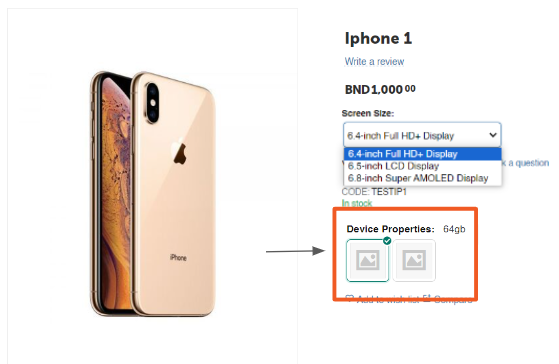
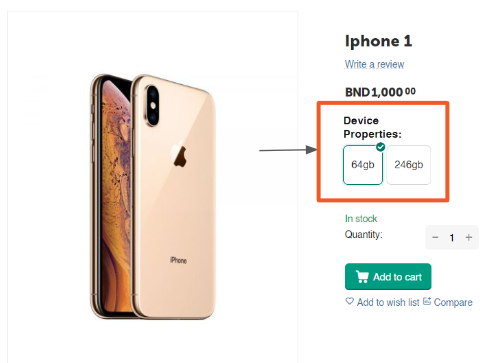
5. Choose Feature Style:
- “Feature style” determines how you want the feature to look on the product page.



Add product variants
Add Product Variants enables you to create different versions of a product based on its features, such as multiple color or size options. The purpose is to organize these variations efficiently under one product or separate listings, depending on how you want them displayed, making it easier for customers to choose from various options. To product variants:
1. Switch to the ‘Variants’ Tab: After setting up features, click on the ‘Variants’ tab.
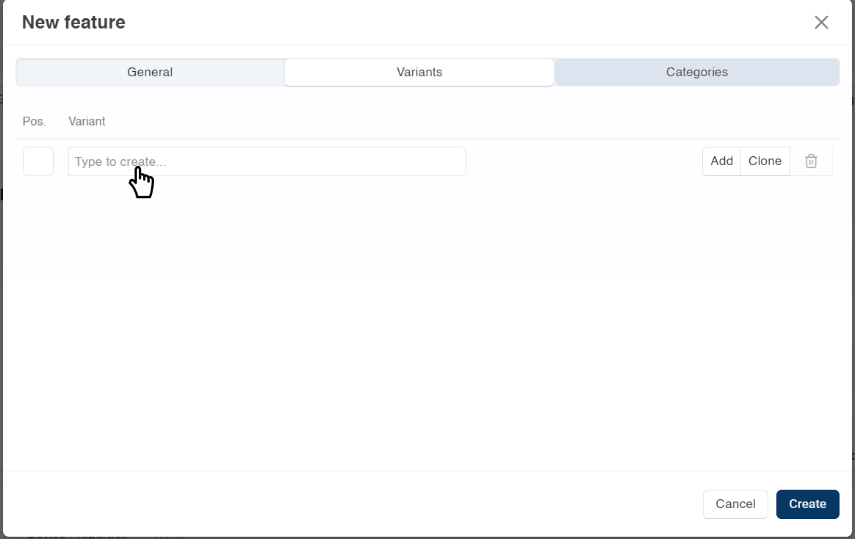
2. Enter variants:
- Type the variants that correspond to the feature (e.g., color options, sizes, or capacities).
- Once you are satisfied with the variants, click ‘Create’.
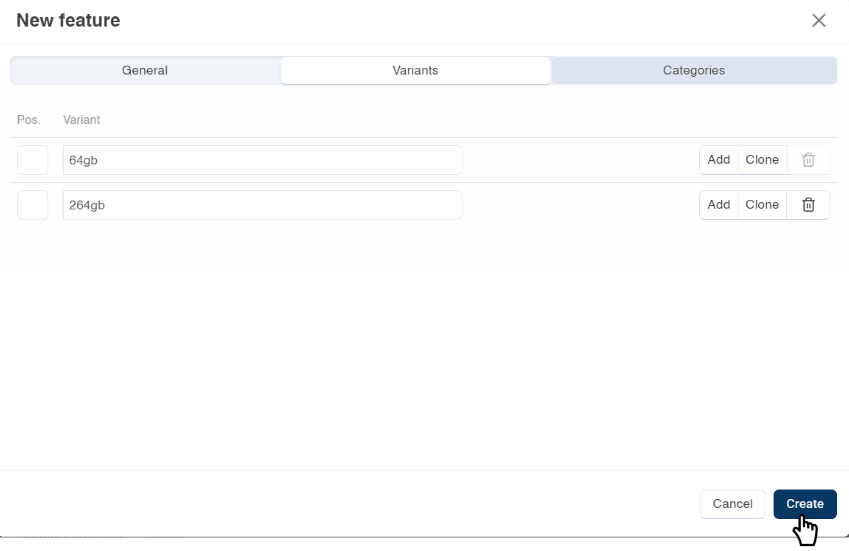
4. Now, you can see the feature “Device Properties has been created.”
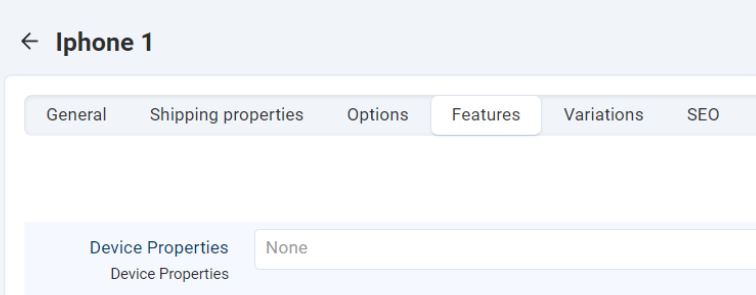
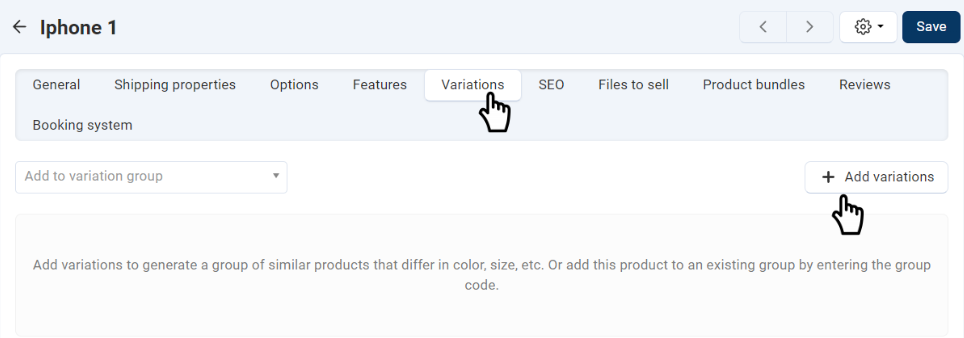
5. Switch to the ‘Variations’ Tab:
- Click ‘+ Add Variations’.
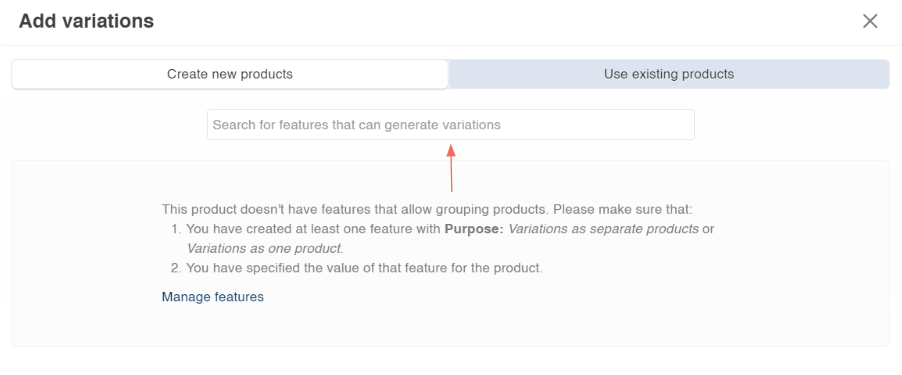
6. Search for Features:
- Find the feature (e.g., “Device Properties”) that you want to use for variations.
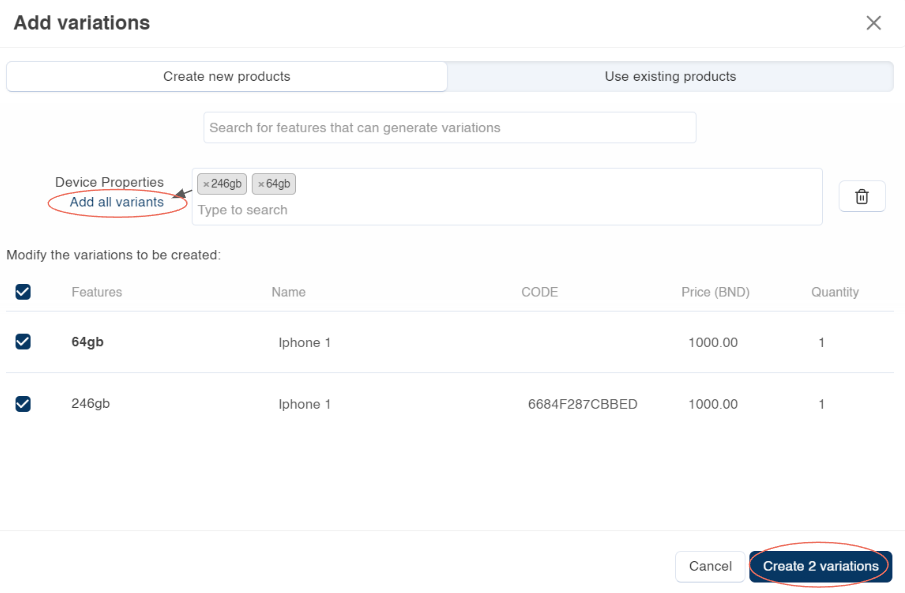
7. Select All Variants:
- Click ‘Add All Variants’ to select every variation you created.
8. Create Variations:
- Once satisfied, click ‘Create Variations’.
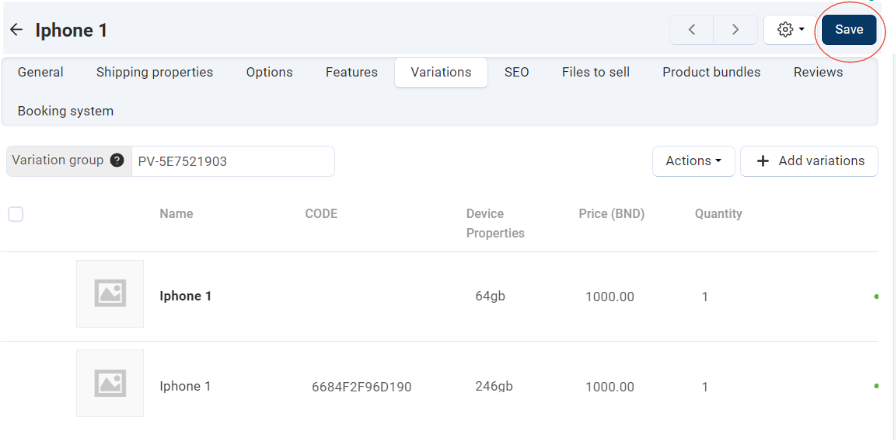
9. Save Your Settings:
- Once you are satisfied with the feature and variations, click ‘Save’ at the top right.
On the storefront, the product will look something like this, depending on the settings you chose during ‘feature’ and ‘variation’ creation.