Have a Question?
How to create a discount promotion
Creating a discount promotion allows you to offer special deals or discounts on specific products in your store. The purpose is to attract customers, boost sales, and increase product visibility during limited-time campaigns, like holiday promotions. It enables you to set conditions, apply discounts, and prioritize promotions to maximize their impact and effectiveness. To create a discount promotion:
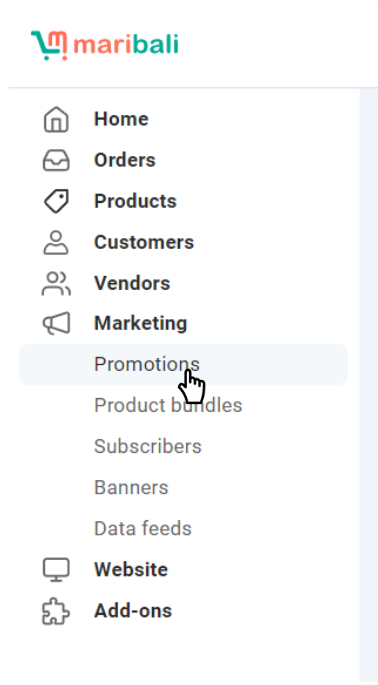
1. Navigate to Promotions:
- Go to the ‘Promotions’ page under ‘Marketing’.
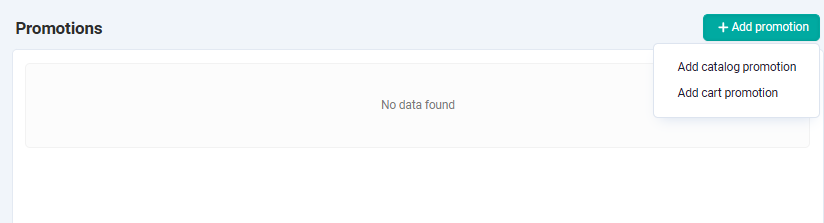
2. Add a Promotion:
- Click ‘+ Add Promotion’ and select ‘Add Catalogue Promotion’ from the dropdown menu.
3. Fill in Promotion Details:
- Name: Give the promotion a clear name, like “Mother’s Day Promotion”.
- Detailed Description: Provide a full description for the promotion page.
- Short Description: Add a brief description for the storefront when viewed by customers. (My account → Orders).

- Image: Add an image for your promotion. It appears next to the detailed descriptions on a special page that lists all promotions in your store.

- Use Available Period: Specify the promotion’s duration by setting Available From and Available Till dates.
- Priority: Set the priority for applying the promotion (0 is the highest).
- Stop Other Rules: If you tick this checkbox, other promotions won’t apply to an order when the current promotion is applied. The Stop other rules checkbox doesn’t affect the promotions of other types. For example, a cart promotion can’t stop a catalog promotion.
- Status: Set the status to Active, Hidden, or Disabled.

4. Set Conditions:
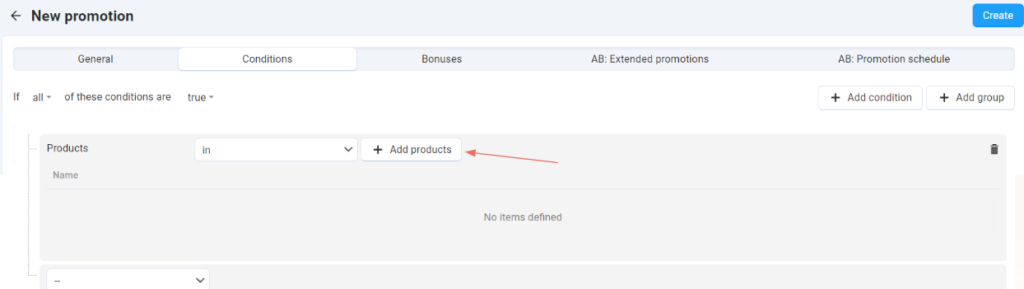
- Go to the ‘Conditions’ tab and click ‘+ Add Condition’.
- Select ‘Products’ as the condition.
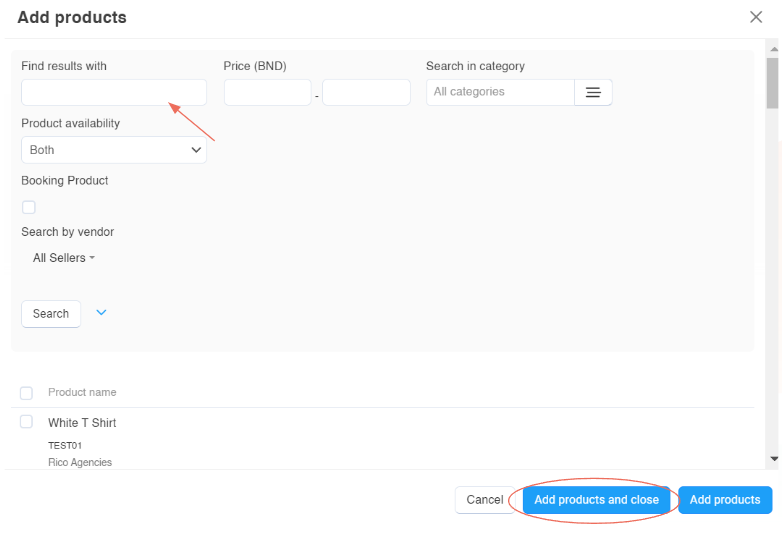
- Choose products for the promotion by scrolling down or using the search bar.
- Once selected, click ‘Add Products and Close’.
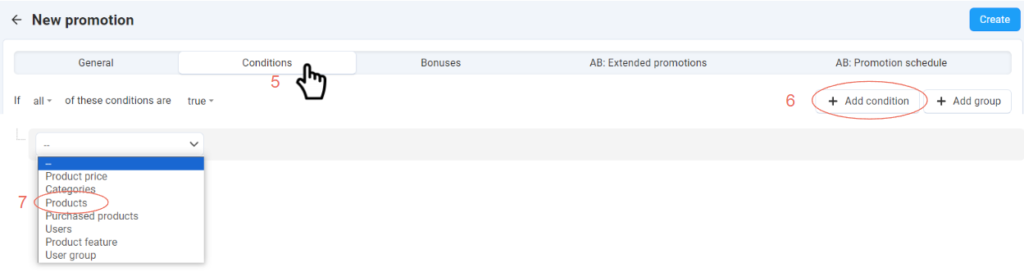
You can create multiple conditions. Please note that phrase at the top of the condition list: If all/any of these conditions are true/false. By choosing between all and any, and true and false, you determine when the promotion applies.
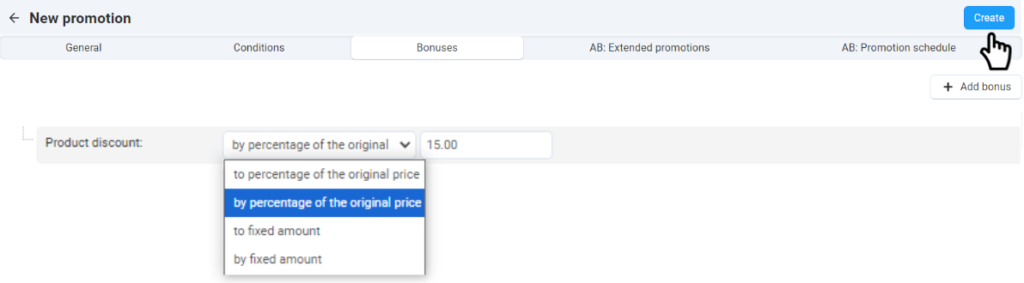
5. Add Bonuses:
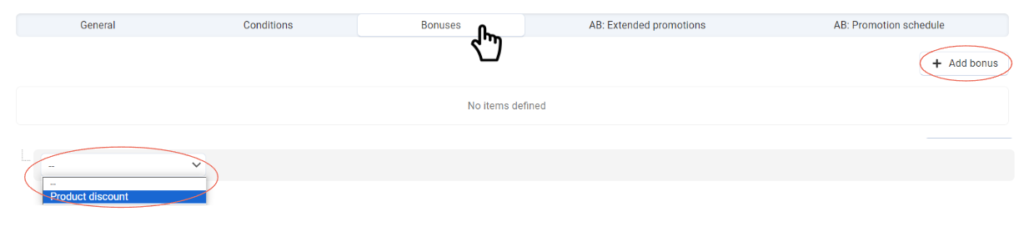
- Go to the ‘Bonuses’ tab and click ‘+ Add Bonus’.
- Choose ‘Product Discount’ from the dropdown menu.
- Select the discount mechanism (e.g., percentage or fixed amount) and input the discount value.
Note: refer to the table below for more information.
| Example of how each mechanism work: | Product Original Price: $20 |
| To percentage of original price: | 5% (final price = $1) |
| By percentage of original price: | 5% (final price = $19) |
| To fixed amount: | 5 (final price = $5) |
| By fixed amount: | 5 (final price = $15) |
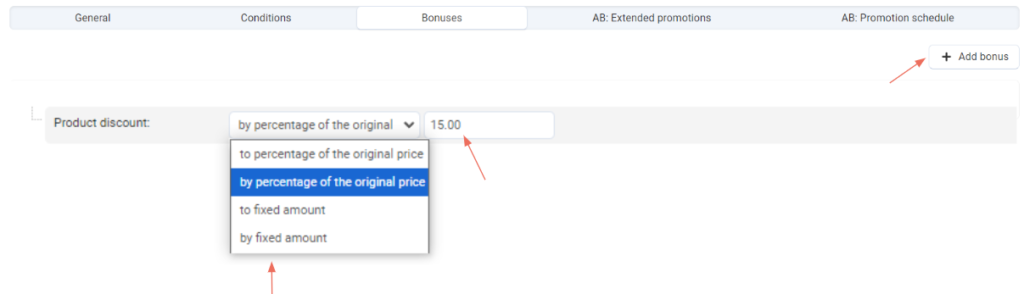
- Click ‘Add Bonus’.
6. Finalize and Create:
- Click ‘Create’ to complete the promotion setup.